
MediaVault
A Media Management Tool Built for Creators
If you regularly shoot photos, record video, capture audio, or work with any kind of media, you already know how quickly things can get messy. Cards pile up, files end up scattered across drives, and you’re never quite sure if that backup actually worked. MediaVault is built to fix exactly that. It is a free macOS application designed for photographers, videographers, and content creators who want their media organised, verified, and backed up without having to think too hard about it.
—
What Is MediaVault?
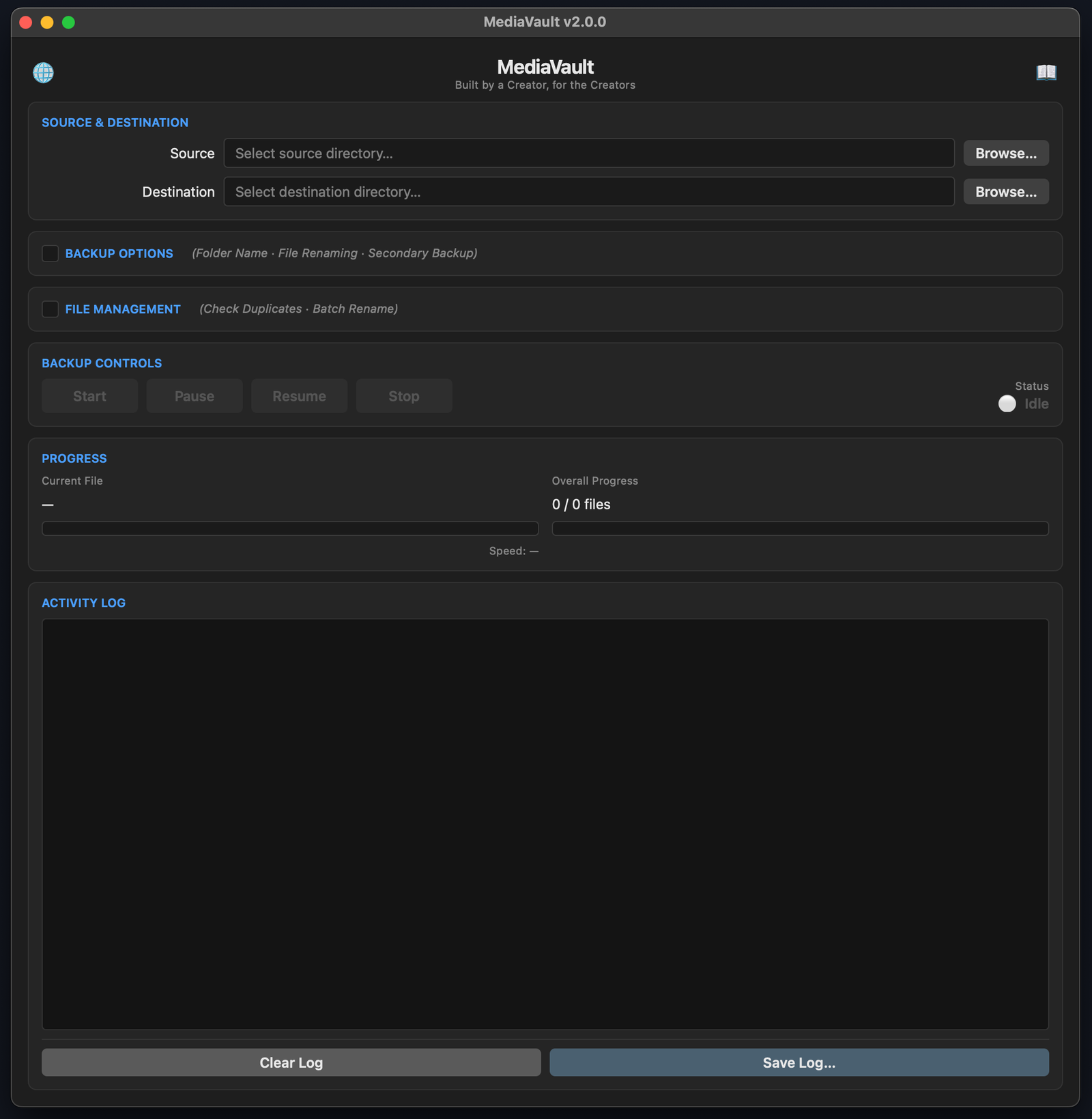
MediaVault is a media ingestion and file management tool for macOS. In plain terms: you point it at a source (a camera card, a folder on your desktop, a drive), tell it where you want your files to go, and it copies everything across into a clean, organised folder structure, sorted by date. After every file is copied, it runs a verification check to confirm the copy exactly matches the original. If something goes wrong during the transfer, MediaVault knows before you do.
The core problems it solves are the ones most creators deal with every week. Files copied to the wrong place. Duplicate images cluttering up storage. Backups you thought were complete that turn out to be missing half a shoot. File names that are meaningless strings of characters with no date or label attached. MediaVault handles all of this automatically so you can focus on the work.
What Can You Use MediaVault For?
Copy and organise media from any source. Whether you are ingesting from a camera card, a phone, a drone, or a folder on an external drive, MediaVault scans the source, identifies all supported media files, and copies them into a structured destination folder organised by year, month, and date. Files are renamed with a clean date prefix, so your library is sortable and consistent from the first ingest.
Back up to two places at once. You can set a secondary backup destination, and both copies are written in the same operation. No need to repeat the process on a second drive.
Verify your backups are actually intact. MediaVault uses BLAKE3 hashing to check every copied file against the original. You can also run a verification check at any time after the fact to confirm all recorded files are still present on your backup drive.
Find and remove duplicate files. The built-in duplicate checker scans any folder you choose and identifies files with identical content, regardless of filename. You can review a report of its findings before choosing to move the duplicates to a separate subfolder.
Rename files in bulk. If you have a folder of inconsistently named media files, Batch Rename offers five naming modes to apply a consistent format in one step. You see a full preview of the planned changes before anything is touched.
Resume interrupted transfers. If a copy is interrupted for any reason, MediaVault picks up where it left off on the next run. Files that have already been successfully copied are never duplicated.
MediaVault supports over 100 file formats, including all major camera RAW formats from Canon, Nikon, Sony, Fujifilm, Olympus, Panasonic, Leica, Hasselblad, Phase One, and more, as well as standard image, video, and audio formats.
How to Download
The MediaVault download is available at the link below. There are two versions: one for Macs running Apple Silicon chips (M1 and later) and one for Intel-based Macs.
Download MediaVault here: [INTEL] MediaVault-2.0.0-x86_64.dmg | [APPLE] MediaVault-2.0.0-arm64.dmgIf you are not sure which chip your Mac has, click the Apple menu in the top left corner of your screen, select About This Mac, and look for the Chip or Processor line.
How to Set Up & Install MediaVault
1. Download the DMG file from the link above. Choose the arm64 version for Apple Silicon Macs or the x86_64 version for Intel Macs.
2. Open the downloaded DMG file by double-clicking it.
3. Drag MediaVault.app into your Applications folder.
4. Try to open MediaVault from your Applications folder or by searching in Spotlight.
5. If macOS shows a warning saying the app is damaged or cannot be opened, open Terminal and run the following command, then try opening the app again:
xattr -cr /Applications/MediaVault.app
This is a standard macOS security step for apps that have not gone through Apple’s paid notarisation process. It is safe to run.
6. The first time you open MediaVault, macOS may show a Gatekeeper security prompt. If it does, right-click or Control-click the app icon, select Open, and then click Open in the dialogue that appears. You only need to do this once.
Troubleshooting
The app says it is damaged or cannot be opened.
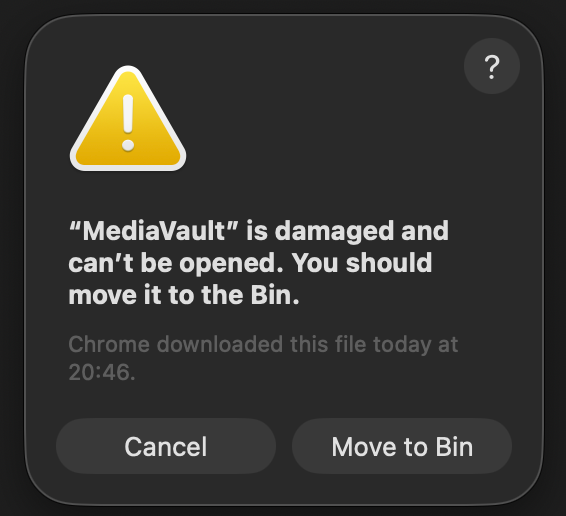
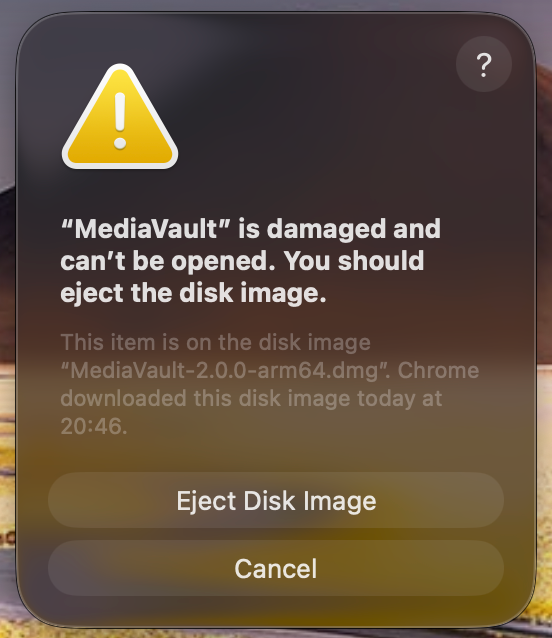
This is a macOS Gatekeeper message for apps distributed outside the App Store. Run this command in Terminal and try again:
xattr -cr /Applications/MediaVault.app

No supported media files found.
Make sure you have selected the right source folder. MediaVault scans subfolders automatically, so you do not need to select individual subfolders. Double-check that your files have recognised extensions.
Not enough disk space.
MediaVault requires a small buffer in addition to the estimated copy size. Free up space on the destination drive, or point the backup at a drive with more room.
No write permission.
If MediaVault cannot create files in your chosen destination, check the folder permissions in Finder. Right-click the destination folder, select Get Info, and review the Sharing and Permissions section at the bottom.
Destination is locked.
This happens when another MediaVault window is already writing to the same destination. Check for other open windows. If no other instance is running (for example, after a crash), the lock will clear automatically the next time you launch the app.
A file failed to copy.
If a file fails the integrity check, MediaVault will retry it on the next run. If the same file fails three times in a row, it is marked as a permanent failure. This usually means the source file itself has a problem. Check the activity log for details.
Batch Rename was cancelled before anything changed.
MediaVault automatically cancels a batch rename if any of the planned new names would conflict with one another, or if files already have a date prefix and you chose a date-based mode. Check the message in the log panel for the specific reason.
If you run into something not listed here, check the activity log inside the app. Every action is recorded there in real time, and it usually points directly to the problem.
Share Your Feedback and Report Issues
If MediaVault behaved unexpectedly while you were using it, please take a moment to let us know. Use the form at the link below to describe what happened: what you were trying to do, what MediaVault did instead, and, if possible, which version you were running and what type of Mac you have. If there is something you wish MediaVault could do but currently does not, we want to hear about it too. Use the same form link above to describe the feature or capability you are looking for and how it would fit into your workflow. There are no guarantees, but genuine requests from people actively using the app carry real weight in deciding what gets built next.
No bug report is too small. If something felt wrong, confusing, or just did not work the way you expected, that is worth knowing. Every report helps improve the application for everyone who uses it.
MediaVault is ready to use today. If you manage media files regularly, even once a week after a shoot or recording session, it will save you time and give you confidence that your files are where they should be and in the same condition as when you hit record. Download it, try it on your next ingest, and see how it fits into your process. If you need help getting started, the feedback form is the right place to reach out. I am paying attention to all of it.